Every few weeks a new AI presentation tool seems to launch with the same promise: type a prompt, get a consulting-grade slide deck in minutes. We have been hearing this claim for two years now. To find out how close any of them have actually come, I ran the same business case prompt through five of the most-talked-about tools and judged the output against the bar I learned to apply during my years at McKinsey.
This post walks through what I tested, how each tool performed, and how I would actually use AI in a real consulting workflow today. None of the five replaces a well-trained consultant. A few of them earn a place in the workflow if you know exactly where to slot them in. Let's dive in.
Update: In October 2026 we ran a test again comparing specialist tools and general models, so check it out for the latest recommendations.
What it takes to create a great presentation
Before judging any tool, it helps to be explicit about what a good presentation actually requires. In my experience from McKinsey, six steps consistently separate a deck that lands from one that gets politely thanked and forgotten.
- Define the audience and the outcome you hope the presentation will lead to, e.g., a GO-decision, a green light, a consensus on the current situation etc.
- Structure the overall storyline to fit the audience type and geared to achieve your desired outcome
- Flesh out the storyline with draft slides in each section, including a first take on action titles
- Fill in each slide with the actual content and data, iterating and analyzing as you go
- Edit ruthlessly! Cut anything that does not move the story forward (this is one of the often-overlooked skills of good consultants)
- Check the small things: spacing, alignment, font sizes, consistent icons. They may seem small, but they all add up to the overall feeling that you are detail-oriented and know what you’re talking about i.e., no stone unturned
Any AI tool worth using has to plug into this workflow without breaking it.
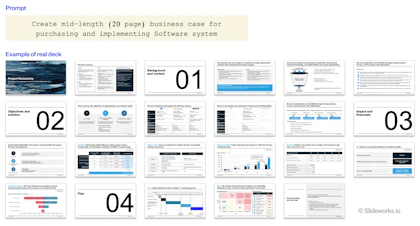
No great science experiment is worth the paper it’s recorded on if you don’t hold as many variables constant as possible. Therefore, I used the same prompt in every tool: create a mid-length (around 20 pages) business case for purchasing and implementing a software system. This is a common consulting deliverable and the kind of deck where structure and rigor matter.
For each tool I evaluated four things: storyline quality, slide-level quality up close, ease of getting the output into a working PowerPoint file, and total time required. The screen recordings below show the actual output, unedited.
1. Perceptis
Website: perceptis.ai
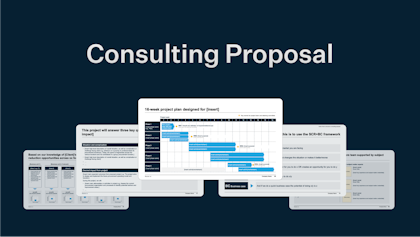
Perceptis started as a tool for consulting proposals and has since expanded into broader slide decks. Of the five tools I tested, this is one of the two that came closest to producing a deck that genuinely looks consulting-grade at first glance.
What works:
- Some of the closest output I have seen to an actual consulting-style deck
- Storylines are solid and cover the main points you would expect
- The interface is intuitive and easy to navigate
Where it falls short:
- Very slow, even for short storylines and individual slides
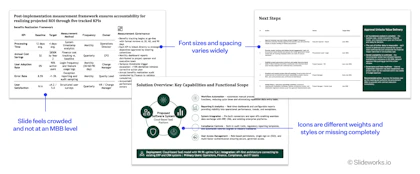
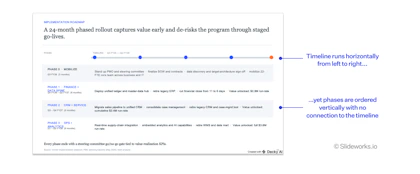
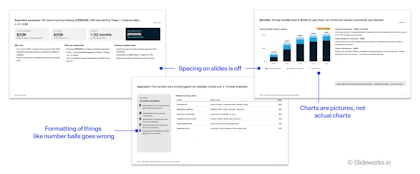
- Slides look consulting-grade from a distance, but up close the small things break: inconsistent spacing, mismatched font sizes, icons from different sets, too little white space
- Downloaded PowerPoint file does not adapt to your own slide master, e.g., colors are hardcoded rather than linked to the master
- The tool only runs in its own web interface, not as a PowerPoint add-in
- The slide library is small, and part of it feels less consulting-style and more basic
- Hallucinated content looks reasonable at first but takes real time to rewrite against the actual facts
Overall: The strongest of the five for raw output quality. It still needs a lot of work to take a deck from 70% to 100%, and the slide master issue is a real friction point.
Price: $29 per month for the starter option and $390 per month for a business license.
2. Decky AI
Website: decky-ai.com (not to be confused with https://decky.ai/ which appears to be a totally different company)
Decky AI markets itself on the visual quality of its consulting-style slides. The look is genuinely strong and the slides are very close to consulting output at first glance.
What works:
- Slides look like consulting slides with good attention to things like white space
- The storyline is fairly solid and covers the key points
Where it falls short:
- Extremely slow. The first version of a 13-page deck took roughly 25 minutes to generate
- The interface lists its own to-dos but never completes them, which makes it hard to know what state the tool is in
- Heavy hallucinations throughout the content
- Several slides do not make sense on closer inspection
- Fonts are inconsistent, with up to three different fonts on a single slide
- Slides do not translate when copied into a new slide master
Overall: The visual baseline is the best of the tools I tested. The speed, reliability, and content quality are not yet at a point where the output genuinely saves time.
Price: €25-€50 per month for individuals and €199 per month for businesses.
3. Deckary
Website: deckary.com
Deckary is closer in spirit to slide-building add-ins like ThinkCell or Auxi than to a full deck generator. The tool has clear strengths in chart building and slide-level editing, but it failed at the core task of generating a full deck from a prompt.
What works:
- Really good at creating and editing charts
- Useful time-saving elements: alignment buttons, sticker inserts, element library, similar to ThinkCell and Auxi
- Individual slide editing works reasonably well, including text formatting and tweaking the layout
Where it falls short:
- Generating a full deck failed in my test. The output was a confusing response and a single weird cover slide. Maybe I wasn’t doing it correctly, but the experience was not self-explanatory
Overall: Worth it to consider for more productive slide editing, like an alternative to ThinkCell or Auxi. However, not at the same level of slide generation as players like Decky AI or Perceptis.
Price: $10 per month for the starter pack, $15 per month for the premium version, and $20 per month for a team license, all billed yearly.
4. Claude Design
Website: claude.ai/design
Claude Design is the most thoughtful of the five in how it sets up a project, in my opinion. It asks the questions a good consultant would ask before opening PowerPoint. The output quality, once you get there, is the weakest part of the experience.
What works:
- Good structural thinking
- Asks the right intake questions up front: who the deck is for and what outcome you want
- Lets you upload your own files to tweak the design system
Where it falls short:
- Even with 20 example slides uploaded, it takes a lot of back-and-forth prompting to get the design moving in the right direction
- Most slides are visually off, especially after export to PowerPoint
- Charts come through as images and cannot be edited in PowerPoint – so frustrating!
- Not at a consulting-grade standard yet
Overall: The intake flow is genuinely useful for structuring your thinking. The slide output is not ready to use without significant rework.
Price: Usage-based.
5. Slidely
Website: slidely.ai
Slidely is the most workflow-friendly of the five. It runs both in their web interface and as a PowerPoint add-in, and it handles the long generation times well by emailing you when the deck is ready. The slides themselves do not yet meet the consulting bar.
What works:
- Small thing, but super helpful! Alerts and email-on-completion let you start a long generation and do other work while it runs
- Asks the right intake questions up front, similar to Claude
- Solid storyline builder with the option to choose layouts. However, layout choices are limited to text slides and cover/section slides, not different types of slide body layouts
- Helpful prompting flow: instead of writing full sentences, you can pick from three suggested actions
- Output is usable directly in PowerPoint
- Works both in a web interface and as a native PowerPoint add-in
Where it falls short:
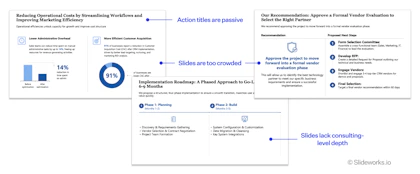
- Action titles are completely off; they read passively and are not action-oriented
- Slow at generating the actual slides
- Slides do not look like consulting slides up close. Too many icons, too many decorative lines, inconsistent font sizes, not enough disciplined white space
Overall: The best workflow design of the five. The slide-level output still needs a lot of editing, though, and is not close to MBB-grade slides.
Price: $20 per month for the pro option and $100 per month for the max option.
After two days of testing, my conclusion is simple. The storyline builders and structural prompts in these tools are genuinely useful. Also, they give some ideas and inspiration on how to format the slides that can be helpful if you’re staring at the blank page.
The fully hallucinated slides are – surprisingly – not helpful at all. They take more time to fix than building the slide from scratch would take, which is counter-intuitive to the “old” way of creating decks where I’d use old cases and reconfigure and edit them to match my current client project.
The version of an AI presentation tool I would actually use looks like this: it gives me a strong storyline, a slide outline for each page, and a first cut at action titles. Then it gets out of the way and lets me fill in the body of each slide myself.
The pre-filled content these tools generate today is a distraction. It looks plausible enough that you start editing it, then realize halfway through that you would have been faster writing the slide from a blank page, or that you’re spending too much time anchoring-and-adjusting on AI slop rather than creating the takeaways and messages from first principles.
If you want to use any of these tools in a real engagement today, my recommendation is to treat them as storyline scaffolding and inspiration only. Generate the structure, keep the section headers, throw away the body content, and build the slides yourself against the actual evidence in your project.
Where this leaves us
None of the five tools tested produces a deck I would send to a client today. Perceptis and Decky AI come closest on raw output quality. Slidely has the cleanest workflow. Claude Design asks the best questions. Deckary is the most useful as a slide-level productivity tool. Each one is strong in one slice of the workflow and weak across the rest.
The gap that remains is the one that matters most: AI tools cannot yet produce slides with the structural rigor, sharp action titles, and disciplined visual hierarchy that defines MBB consulting-grade work. That is still the work of a trained consultant and, for now, it is still the fastest way to get there.
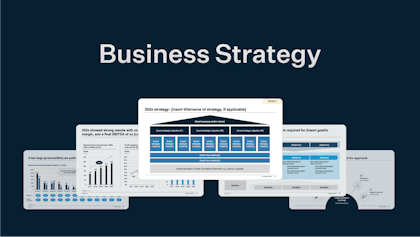
Build your own McKinsey-level slide library
Get full-length consulting case decks, frameworks, and slide layouts built by ex-McKinsey consultants.
Get the slides now